Help Center
How to send Attributer data to Stripe

This article explains how to capture the marketing attribution data that Attributer collects — things like which channel a visitor came from, their UTM parameters, and their landing page — and pass that data to Stripe as metadata on each customer record.
Once this is set up, you’ll be able to use tools like ChartMogul or Baremetrics to break down your Stripe revenue and retention by marketing channel (e.g. organic search, paid social, email, etc.).
Overview
Attributer does not send data to Stripe directly. Instead, it makes attribution data available in the browser and your development team passes that data to Stripe when creating a customer record.
The general flow would be something like this:
- A visitor lands on your site and Attributer’s JavaScript runs. It looks at data like UTM parameters, HTTP Referred, etc and categorizes the visitor into a series of standardised marketing channels (e.g. Paid Search, Organic Social, Organic Search, Direct)
- It stores the data in a cookie in the visitor’s browser
- When the visitor signs up for your product/service, you can either retrieve the data from the cookie or have Attributer write the data into hidden fields you add to your form.
- You store the data in your database (often on the accounts table or users table, depending on your structure)
- When you create a customer in Stripe (at trial start, or whenever you make the
create customerAPI call), you append the attribution data as metadata on that customer record.
Step-By-Step Instructions
Step 1: Install Attributer on your site
If you haven’t already, add the Attributer JavaScript snippet to your marketing site. It should be present on every page so that attribution is captured regardless of which page a visitor first lands on.
It’s generally a good idea to include it in your application as well (I.e. on app.yourproduct.com) as people can land directly on your application (they don’t always come through your marketing website).
Once installed, Attributer will automatically inspect UTM parameters and the HTTP referrer for each visitor, apply its attribution logic, and store the results in a first-party cookie.
Step 2: Retrieve the attribution data
There are two ways to get the attribution data out of the cookie and into your system:
Option A: Pull it from the cookie with Javascript
f your signup flow doesn’t use a traditional HTML form (for example, if you’re using a “Sign up with Google” or “Sign up with Facebook” social login), you can read the attribution data directly from the cookie using JavaScript and pass it to your backend as part of the signup flow.
Attributer stores data in the document.FlareTrk.data object. Because the script loads asynchronously, you should wait for it to be ready before reading the data. Here’s some sample code to get you started (it reads the attribution fields from the cookie and logs them to the console). You can adapt it to send the data to wherever you need it to go:
(() => {
  function waitForData() {
    // Wait for Attributer data to be ready
    if (!document.FlareTrk?.data) {
      return window.requestAnimationFrame(waitForData);
    }

    // Channel and drilldown data
    const channel        = document.FlareTrk.data.drillData.channel;
    const drilldown1     = document.FlareTrk.data.drillData.drillDown1;
    const drilldown2     = document.FlareTrk.data.drillData.drillDown2;
    const drilldown3     = document.FlareTrk.data.drillData.drillDown3;
    const drilldown4     = document.FlareTrk.data.drillData.drillDown4;

    // Landing page data
    const landingPage      = document.FlareTrk.data.landing_url;
    const landingPageGroup = document.FlareTrk.data.landing_page_group;

    // Pass these values to your backend (e.g. include them in your signup API call)
    console.log("channel:", channel);
    console.log("drilldown1:", drilldown1);
    console.log("drilldown2:", drilldown2);
    console.log("drilldown3:", drilldown3);
    console.log("drilldown4:", drilldown4);
    console.log("landing_page:", landingPage);
    console.log("landing_page_group:", landingPageGroup);
  }
  waitForData();
})();
Option B: Use hidden fields on your signup form
If your signup flow uses an HTML form, the simplest approach is to add hidden input fields to the form. Attributer will automatically populate these fields with the attribution data when the form loads.
Add the following hidden fields to your signup form:
<input type="hidden" id="[attributer-channel]" name="[attributer-channel]" value="[channel]">
<input type="hidden" id="[attributer-channeldrilldown1]" name="[attributer-channeldrilldown1]" value="[channeldrilldown1]">
<input type="hidden" id="[attributer-channeldrilldown2]" name="[attributer-channeldrilldown2]" value="[channeldrilldown2]">
<input type="hidden" id="[attributer-channeldrilldown3]" name="[attributer-channeldrilldown3]" value="[channeldrilldown3]">
<input type="hidden" id="[attributer-channeldrilldown4]" name="[attributer-channeldrilldown4]" value="[channeldrilldown4]">
<input type="hidden" id="[attributer-landingpage]" name="[attributer-landingpage]" value="[landingpage]">
<input type="hidden" id="[attributer-landingpagegroup]" name="[attributer-landingpagegroup]" value="[landingpagegroup]">
When the form is submitted, these values will be included alongside the user’s name, email, and any other fields and can be processed by your backend in exactly the same way.
Note: If needed, you can change the name or id attributes to match your own backend or CRM. Attributer looks for the value attribute first, then name, then id, so the value attribute must remain exactly as shown above.
Step 3: Store the attribution data in your database
Regardless of which option above you use, once you have the attribution data on your backend you should persist it, typically by storing it on your accounts table or a linked marketing_attribution table. This ensures the data is available later, even if there’s a delay between signup and when you create the customer in Stripe.
Step 4: Pass the attribution data to Stripe as customer metadata
When your backend makes the API call to Stripe to create a customer (whether that’s at the point of signup, trial start, or when a user enters their payment details), retrieve the stored attribution data and include it in the metadata field of the request.
Here’s an example using the Stripe Node.js SDK:
const customer = await stripe.customers.create({
  email: user.email,
  name: user.name,
  metadata: {
    channel: account.attributer_channel,
    channeldrilldown1: account.attributer_channeldrilldown1,
    channeldrilldown2: account.attributer_channeldrilldown2,
    channeldrilldown3: account.attributer_channeldrilldown3,
    channeldrilldown4: account.attributer_channeldrilldown4,
    landingpage: account.attributer_landingpage,
    landingpagegroup: account.attributer_landingpagegroup,
  },
});
Note: The same approach works regardless of when you create the Stripe customer. We have some customers who create it immediately on signup, some who create it at the start of a free trial, and some who only create the customer when a user enters a payment method at the end of a trial. As long as you are storing the data, you can send it to Stripe whenever makes sense for you.
What you’ll see in Stripe
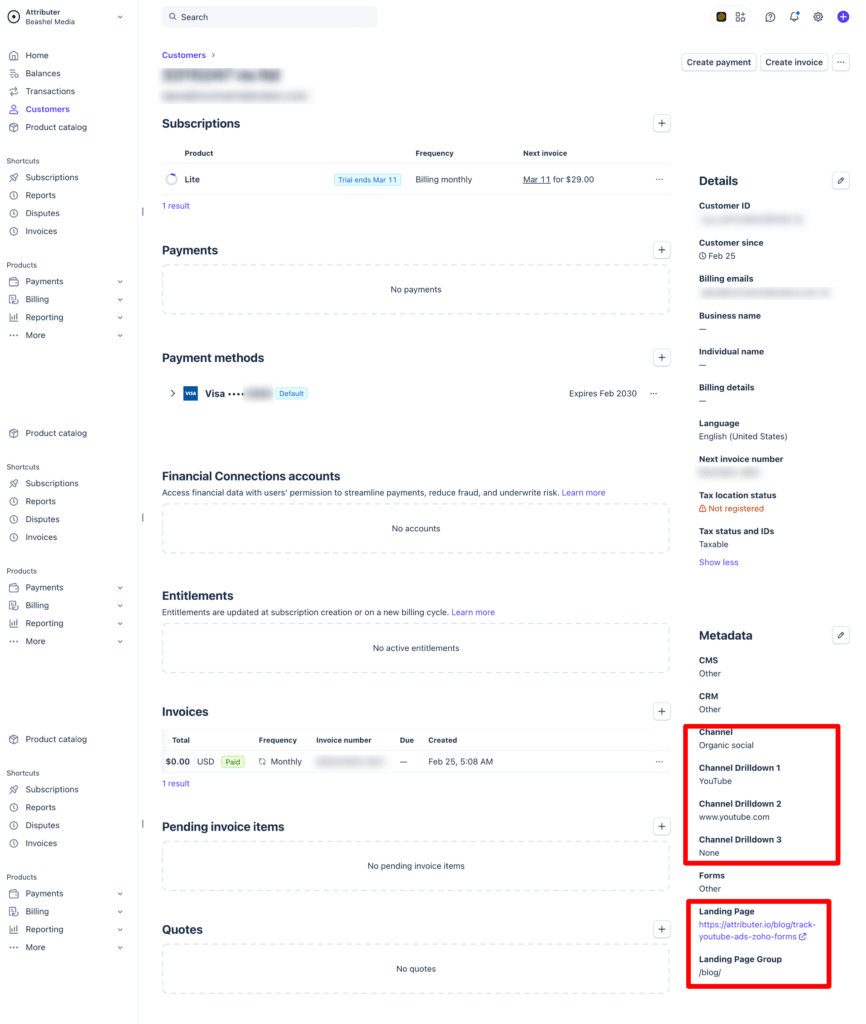
Once this is set up, each customer record in Stripe will have attribution metadata attached to it. In the Stripe dashboard, this appears under the Metadata section of each customer’s profile. Here’s an example:
Analysing your data
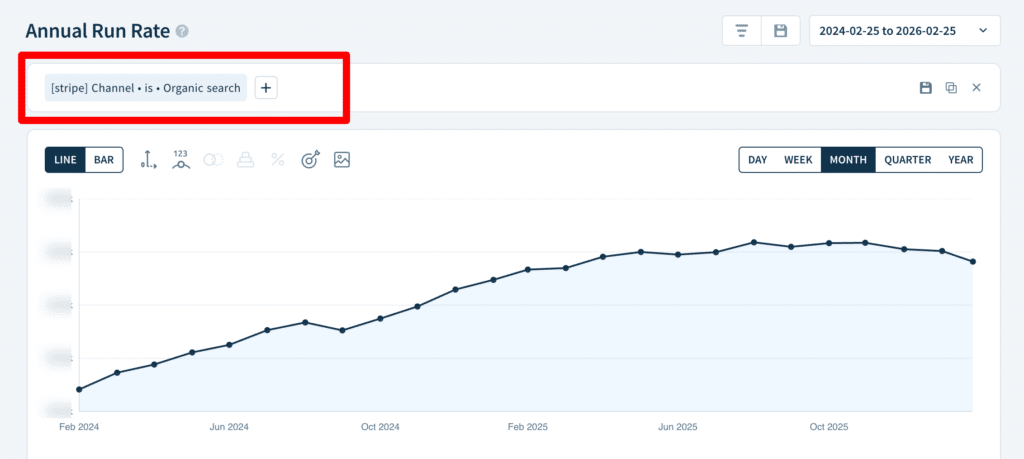
With attribution metadata stored on your Stripe customers, you can use revenue analytics tools like ChartMogul, Baremetrics, or ProfitWell to slice your MRR, ARR, and retention metrics by marketing channel. For example:
- How much ARR came from customers who found us via Paid Search?
- What is the retention rate of customers who came from Organic Social vs. Direct?
- Which UTM campaigns are driving the most revenue?
These tools can read the metadata fields directly from your Stripe customer records and expose them as filterable dimensions in their reporting dashboards. See example screenshot below:
Frequently asked questions
What data gets stored in the Channel & Channel Drilldown fields?
Attributer stores different information in the Channel and Channel Drilldown fields depending on what channel the visitor actually arrives from.
For instance, if the visitor arrives from Paid Search then it uses the data in the UTM parameters (I.e. utm_source, utm_campaign, etc) to populate the drilldown fields. But if a user arrives from Organic Search, it stores the name of the search engine (I.e. Google), the URL of the search engine (I.e. www.google.co.uk) and the keyword (where available).
You can see the full documentation of what data Attributer stores here.
I have another question. Can I speak with someone?
Absolutely! We would love to answer any questions you might have and you can contact us here.
Can't find the answer you need? Contact us!
Our team are available to answer any questions you have