Help Center
Switch from Google Sign In to Email Sign In

If you originally signed up for an Attributer account using Google Sign In (I.e. the button that lets you sign up using your Google account rather than entering an email address), then this article will tell you how to switch back to using an email address and password to log in to your account
Step 1: Naviate to the Settings section
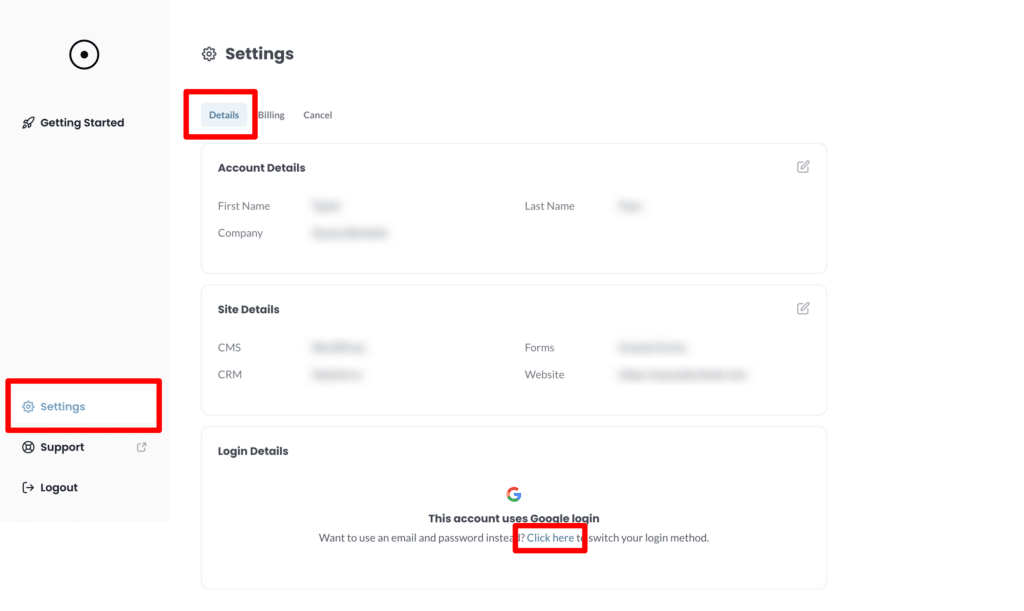
The first step is to log in to your account, navigate to the Settings section, and select the Details tab. Once on the Details tab, click on the ‘Click here to switch your login method’ link.
Step 2: Set your password
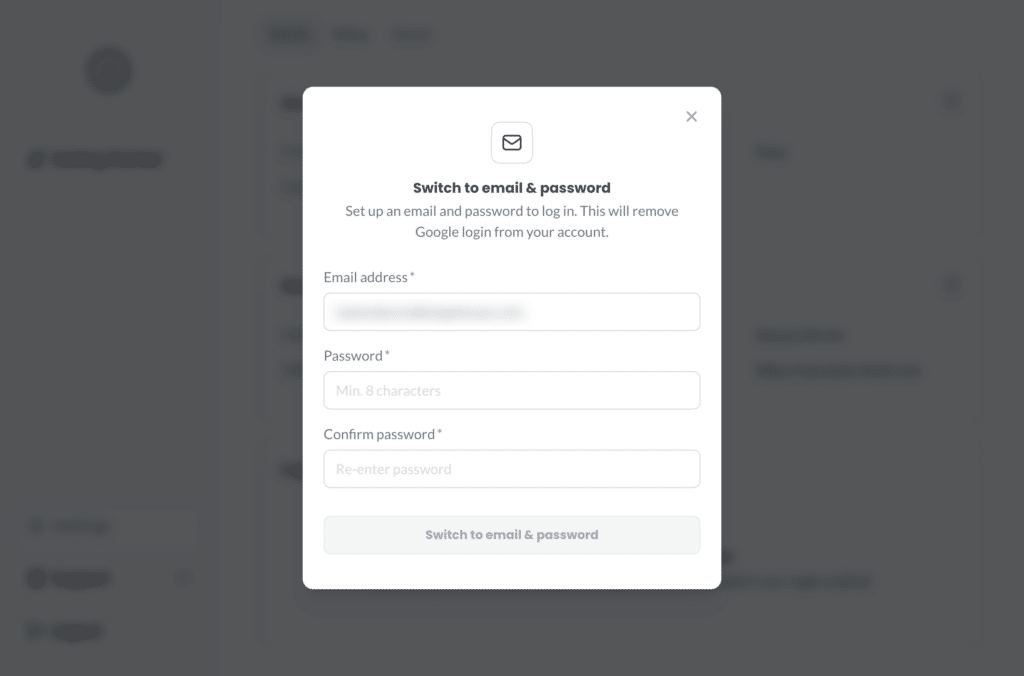
In the popup that appears, set a password for your account and then click the ‘Switch to email & password’ button to finish.
That’s it! You will now be redirected in to your account and you will be able to log in with your email address and password in the future.
Can't find the answer you need? Contact us!
Our team are available to answer any questions you have