Help Center
Add Hidden Fields to OnceHub Booking Calendars

Attributer is a little bit of code you add to your website. It tracks where your visitors are coming from (i.e., Paid Search, Paid Social, Organic Search, etc) and writes the data into hidden fields you add to your booking forms, and the data is captured in OnceHub with each new booking (and can be seen on the Contact record in OnceHub, sent to a CRM, included in internal email notifications, etc).
In order for it to work, you need to add a series of hidden fields to your OnceHub booking forms. Here’s how to do it:
Step 1: Add the first Contact Property your OnceHub account
If you are using OnceHub, you first need to create a series of fields on the Contact object before those fields can be added as hidden fields on your booking forms.
To do this, click the gear icon in the top right corner of your OnceHub account, and then select ‘Field Library’ from the dropdown menu.

Once in the Field Library, click the ‘Create field’ button in the top right. A form will appear that looks a bit like this:
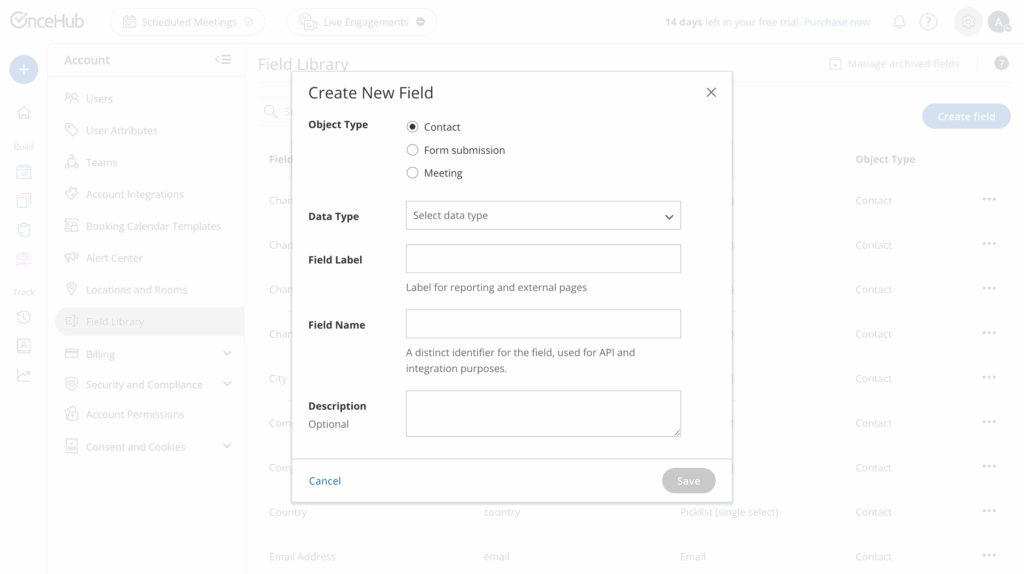
Enter the following information into the fields:
- Object Type = Contact
- Data Type = Text (short)
- Field Label = Channel
- Field Name = channel
- Description: Add a description if you wish, but it isn’t necessary
Important: The Field Name must be entered exactly as shown above (lowercase, no spaces). This is the internal identifier that Attributer uses to pass data into the field.
It should ultimately look a bit like this:
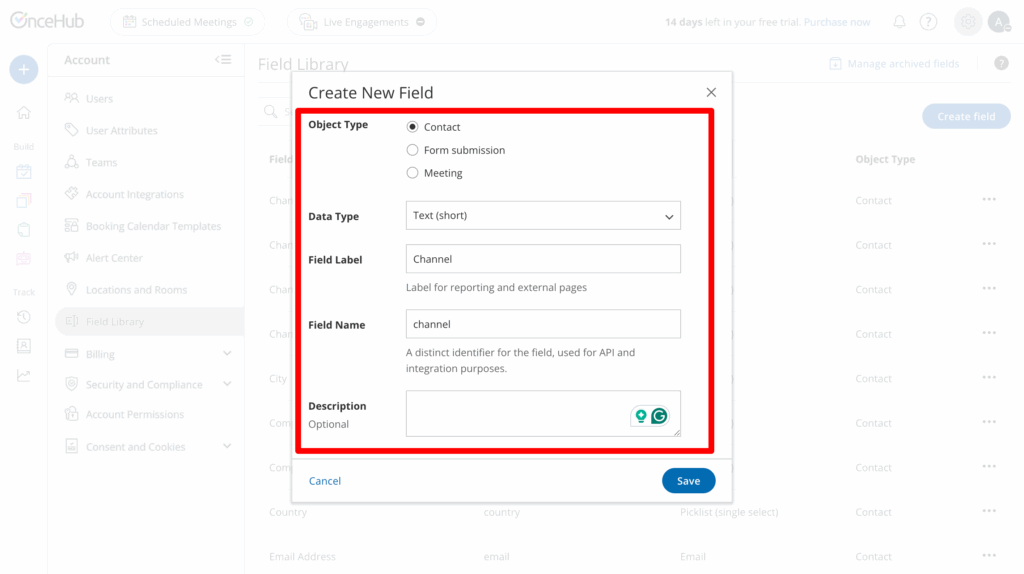
Finally, click the ‘Save’ button to finish creating the first custom field.
Step 2: Add the rest of the Contact Properties to OnceHub
Now that you understand how to add a new Field to the Contact object in OnceHub, we need to repeat this process a few more times to add all the fields Attributer needs to work.
The following details are what you’ll need to enter:
Property #2
- Object Type = Contact
- Data Type = Text (short)
- Field Label = Channel Drilldown 1
- Field Name = channeldrilldown1
- Description: Add a description if you wish, but it isn’t necessary
Property #3
- Object Type = Contact
- Data Type = Text (short)
- Field Label = Channel Drilldown 2
- Field Name = channeldrilldown2
- Description: Add a description if you wish, but it isn’t necessary
Property #4
- Object Type = Contact
- Data Type = Text (short)
- Field Label = Channel Drilldown 3
- Field Name = channeldrilldown3
- Description: Add a description if you wish, but it isn’t necessary
Property #5
- Object Type = Contact
- Data Type = Text (short)
- Field Label = Landing Page
- Field Name = landingpage
- Description: Add a description if you wish, but it isn’t necessary
Property #6
- Object Type = Contact
- Data Type = Text (short)
- Field Label = Landing Page Group
- Field Name = clandingpagegroup
- Description: Add a description if you wish, but it isn’t necessary
Step 3: Add the 6x fields to your booking form
Now that you’ve set up those Fields on the Contact object, it’s time to add them to the booking form you want Attributer to work with.
To do that, navigate to your Booking Calendars and select the Booking Calendar you wish to edit. When the Booking Calendar editor opens, select the ‘Booking Form’ tab.
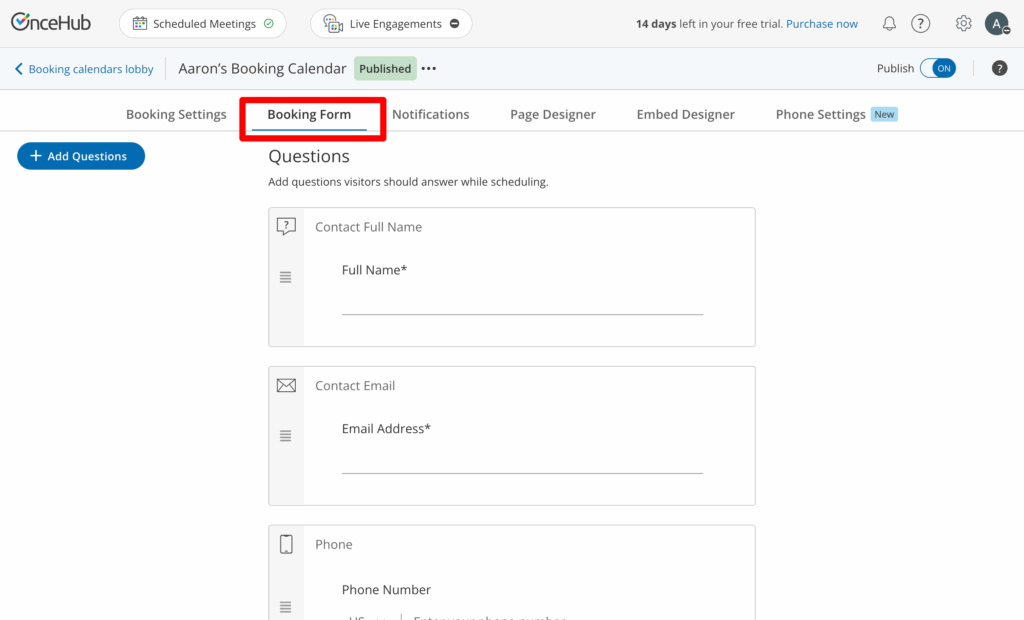
Click the ‘+ Add Questions’ pane in the top left, and then click or drag the ‘Hidden Field’ question type into your form.
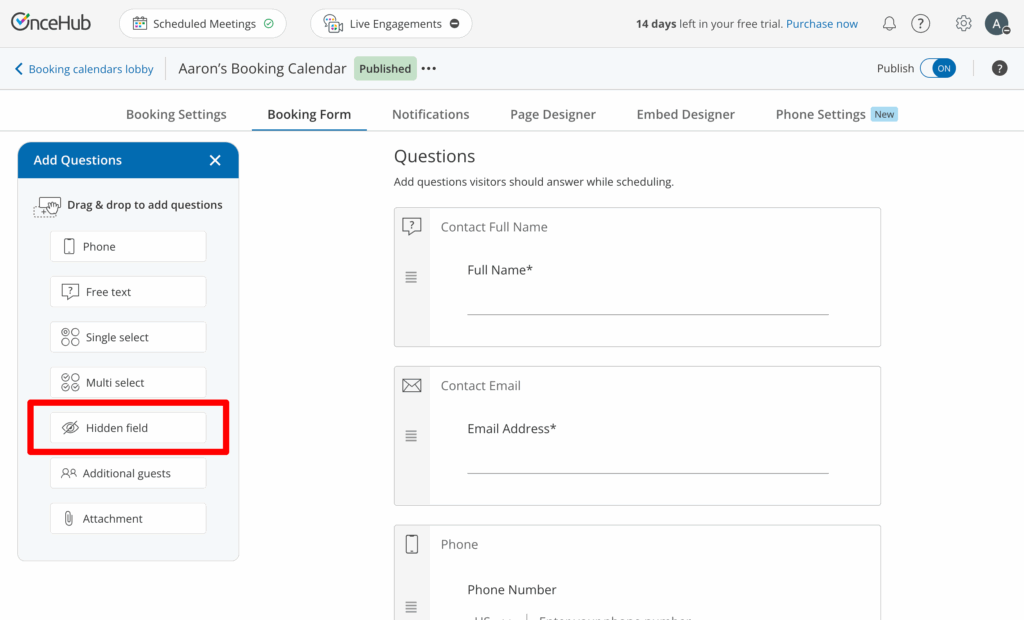
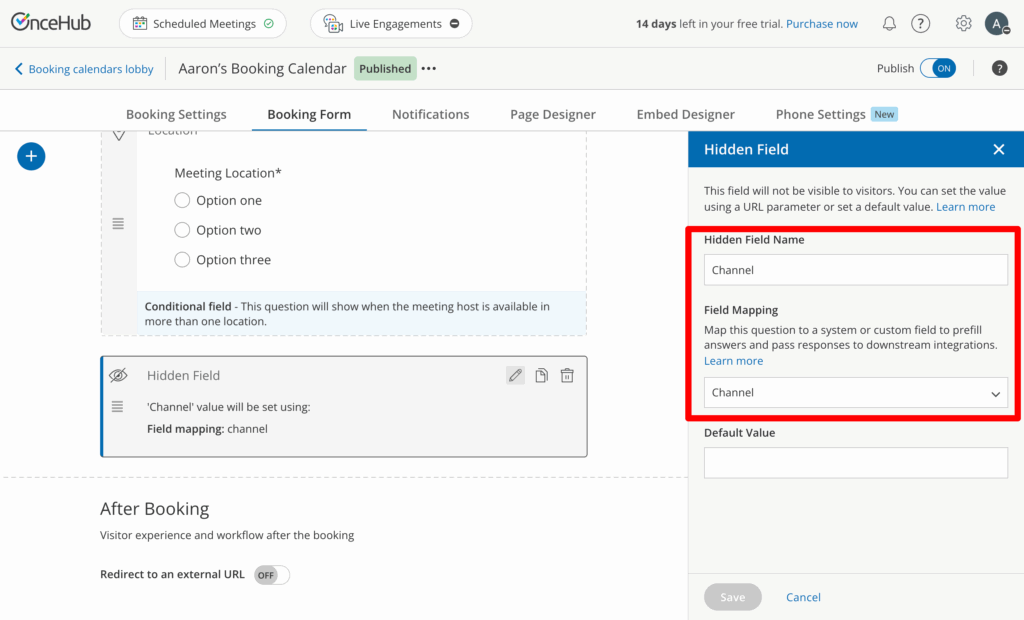
Once added, populate the values as follows:
- Field Label = Channel
- Field Mapping = Select the Channel field you added earlier from the dropdown list that appears
It should ultimately look a bit like this:
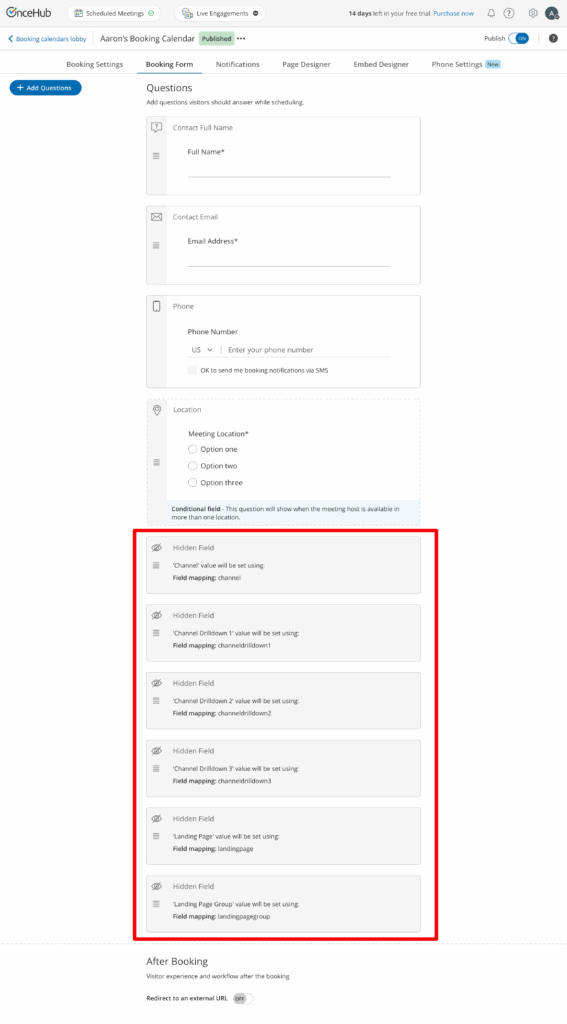
Finally, repeat the process to add the other fields (Channel Drilldown 1, Channel Drilldown 2, Channel Drilldown 3, Landing Page & Landing Page Group). It should ultimately look a bit like this:
Note: In OnceHub Booking Calendars, Field Mapping is required for hidden fields. This ensures the data is properly saved to the Contact record and can flow through to any CRM integrations you have set up.
Step 5: Add some additional code to any page that contains the booking widget
The final step is to add some additional code to any page that contains the OnceHub booking widget you want Attributer to work with. The code you need to add is:
<script>
/* Attributer + OnceHub Integration v1.0.0 */
(function(){var e={attributerTimeout:1e4,attributerPollInterval:100,widgetScanInterval:500,widgetScanDuration:6e4,debugMode:!1},t={initialized:!1,attributerReady:!1,attributerData:null,queryString:"",processedElements:new WeakSet,scannerInterval:null,scannerStartTime:null,observer:null},n="data-attributer-oncehub";function r(t,n){e.debugMode&&(void 0!==n?console.log("[Attributer→OnceHub]",t,n):console.log("[Attributer→OnceHub]",t))}function a(){try{return!(!document.FlareTrk||!document.FlareTrk.data||!document.FlareTrk.data.drillData||!document.FlareTrk.data.drillData.channel)}catch(e){return!1}}function o(t){var n=Date.now(),o=0;!function i(){if(o++,a())return r("Attributer ready after "+(Date.now()-n)+"ms"),void t(null,document.FlareTrk.data);Date.now()-n>=e.attributerTimeout?(r("Timeout waiting for Attributer"),t(new Error("timeout"),null)):setTimeout(i,e.attributerPollInterval)}()}function i(e){if(!e||!e.drillData)return"";var t=[];return t.push("channel="+encodeURIComponent(e.drillData.channel||"")),t.push("channeldrilldown1="+encodeURIComponent(e.drillData.drillDown1||"")),t.push("channeldrilldown2="+encodeURIComponent(e.drillData.drillDown2||"")),t.push("channeldrilldown3="+encodeURIComponent(e.drillData.drillDown3||"")),t.push("channeldrilldown4="+encodeURIComponent(e.drillData.drillDown4||"")),e.landing_url&&t.push("landingpage="+encodeURIComponent(e.landing_url)),e.landing_page_group&&t.push("landingpagegroup="+encodeURIComponent(e.landing_page_group)),e.gclid&&t.push("gclid="+encodeURIComponent(e.gclid)),e.fbclid&&t.push("fbclid="+encodeURIComponent(e.fbclid)),e.msclkid&&t.push("msclkid="+encodeURIComponent(e.msclkid)),e.gbraid&&t.push("gbraid="+encodeURIComponent(e.gbraid)),e.wbraid&&t.push("wbraid="+encodeURIComponent(e.wbraid)),t.join("&")}function s(e){return t.processedElements.has(e)||e.hasAttribute(n)}function c(e){t.processedElements.add(e);try{e.setAttribute(n,"true")}catch(e){}}function l(e,t){try{var n=new URL(e);return t.split("&").forEach(function(e){var t=e.split("="),r=decodeURIComponent(t[0]),a=t[1]?decodeURIComponent(t[1]):"";r&&!n.searchParams.has(r)&&n.searchParams.set(r,a)}),n.toString()}catch(n){return e+(e.indexOf("?")>=0?"&":"?")+t}}function u(e){if(s(e)||!t.queryString)return!1;try{var n=e.getAttribute("data-so-qry-prm")||"",a=void 0;if(n){var o={};n.split("&").forEach(function(e){var t=e.split("=")[0];t&&(o[decodeURIComponent(t)]=!0)});var i=[];t.queryString.split("&").forEach(function(e){var t=decodeURIComponent(e.split("=")[0]);t&&!o[t]&&i.push(e)}),a=i.length>0?n+"&"+i.join("&"):n}else a=t.queryString;return e.setAttribute("data-so-qry-prm",a),c(e),r("Processed widget",{page:e.getAttribute("data-so-page")}),!0}catch(e){return!1}}function d(e){if(s(e)||!t.queryString||!e.src)return!1;try{var n=l(e.src,t.queryString);return n!==e.src?(e.src=n,c(e),r("Processed iframe"),!0):(c(e),!1)}catch(e){return!1}}function p(e){if(s(e)||!t.queryString||!e.href)return!1;try{var n=l(e.href,t.queryString);return n!==e.href?(e.href=n,c(e),r("Processed link"),!0):(c(e),!1)}catch(e){return!1}}function f(){if(!t.queryString)return{found:0,processed:0};var e=0,n=0,r=document.querySelectorAll("[data-so-page]");e+=r.length;for(var a=0;a<r.length;a++)u(r[a])&&n++;var o=document.querySelectorAll('iframe[src*="oncehub.com"], iframe[src*="go.oncehub.com"]');e+=o.length;for(var i=0;i<o.length;i++)d(o[i])&&n++;var s=document.querySelectorAll('a[href*="oncehub.com"], a[href*="go.oncehub.com"]');e+=s.length;for(var c=0;c<s.length;c++)p(s[c])&&n++;return{found:e,processed:n}}function g(){t.observer||(void 0===MutationObserver?r("MutationObserver not available"):(t.observer=new MutationObserver(function(e){for(var t=!1,n=0;n<e.length&&!t;n++){var a=e[n];if("childList"===a.type&&a.addedNodes.length>0)for(var o=0;o<a.addedNodes.length&&!t;o++){var i=a.addedNodes[o];i.nodeType===Node.ELEMENT_NODE&&(i.matches&&(i.matches("[data-so-page]")||i.matches('iframe[src*="oncehub"]')||i.matches('a[href*="oncehub"]'))&&(t=!0),!t&&i.querySelector&&(i.querySelector("[data-so-page]")||i.querySelector('iframe[src*="oncehub"]')||i.querySelector('a[href*="oncehub"]'))&&(t=!0))}}t&&setTimeout(f,100)}),t.observer.observe(document.body,{childList:!0,subtree:!0}),r("Observer started")))}function m(){t.scannerInterval||(t.scannerStartTime=Date.now(),t.scannerInterval=setInterval(function(){f();if(e.widgetScanDuration>0){Date.now()-t.scannerStartTime>=e.widgetScanDuration&&(clearInterval(t.scannerInterval),t.scannerInterval=null,t.observer&&(t.observer.disconnect(),t.observer=null),r("Scanning complete"))}},e.widgetScanInterval),r("Scanner started"))}function h(){t.initialized||(r("Initializing..."),o(function(e,n){e||!n?r("Could not get Attributer data"):(t.attributerData=n,t.attributerReady=!0,t.queryString=i(n),r("Data ready",{channel:n.drillData.channel}),f(),g(),m(),t.initialized=!0,r("Ready"))}))}window.AttributerOnceHub={status:function(){var e={initialized:t.initialized,attributerReady:t.attributerReady,queryStringReady:!!t.queryString};return console.log("[Attributer→OnceHub Status]",e),t.queryString&&console.log("[Params]",t.queryString),e},debug:function(t){return e.debugMode=!1!==t,console.log("[Debug "+(e.debugMode?"ON":"OFF")+"]"),e.debugMode},scan:function(){var e=f();return console.log("[Manual scan]",e),e},getParams:function(){return t.queryString},reinit:function(){t.initialized=!1,t.attributerReady=!1,t.queryString="",t.scannerInterval&&clearInterval(t.scannerInterval),t.observer&&t.observer.disconnect(),h()},version:"1.0.0"},"loading"===document.readyState?document.addEventListener("DOMContentLoaded",h):setTimeout(h,0),window.addEventListener("load",function(){setTimeout(function(){t.initialized&&f()},500)})})();
</script>
You can place this anywhere on the page that contains the OnceHub widget, but the easiest approach is to place it directly beneath the standard HubSpot embed code in the same embed block/container.
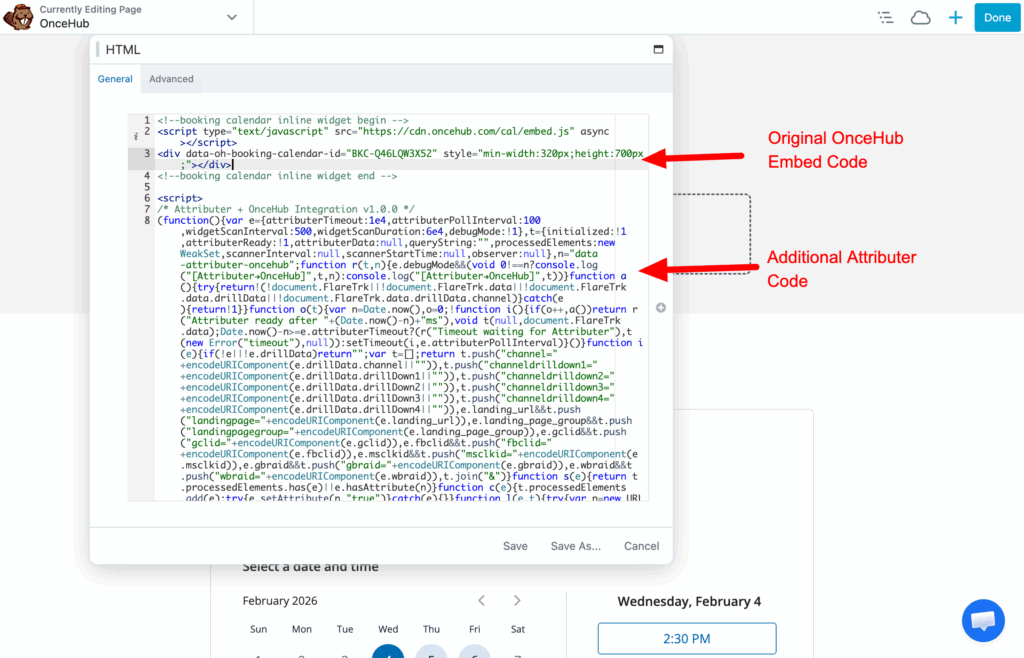
Note: If you have OnceHub widgets embedded on multiple pages of your website, you can place this additional code in the head of your site so it loads on all pages. If you’re using Google Tag Manager, you can add this as a Custom HTML tag that fires on pages containing your OnceHub widget (or on all pages).
Step 9: Test it’s working
To test it’s working, go to your website and complete the booking widget like a normal website visitor would.
Now go to the ‘Contacts’ section of your OnceHub account and select your test contact; the data should appear in the Details section of the contact.
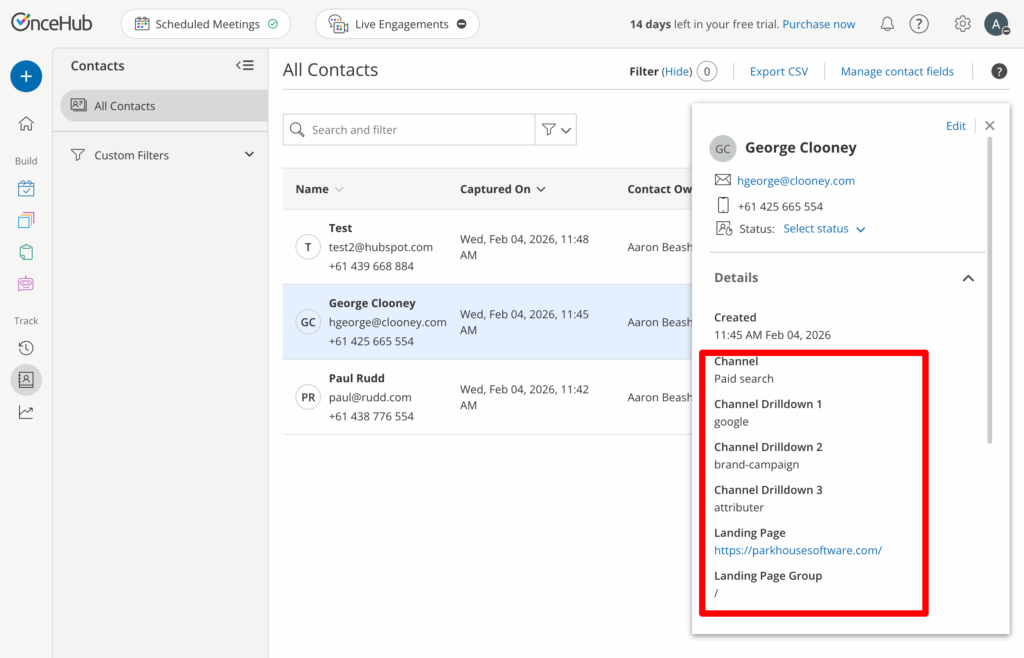
For more information on how to properly test Attributer, check out this article.
We understand that these instructions can be difficult, so if you are having any issues, please feel free to contact our support team. We would be happy to jump on a call and go through the setup process with you if needed.
Can't find the answer you need? Contact us!
Our team are available to answer any questions you have