Help Center
Embed Cal.com using the Inline Embed option

Before following these steps, make sure you have added the hidden fields to your meeting type as described in our main Cal.com article. If you’re using the ‘Inline Embed’ option (where the booking calendar sits directly on your page), follow the steps below to finish setting up Attributer.
Step 1: Grab the embed code for your booking widget
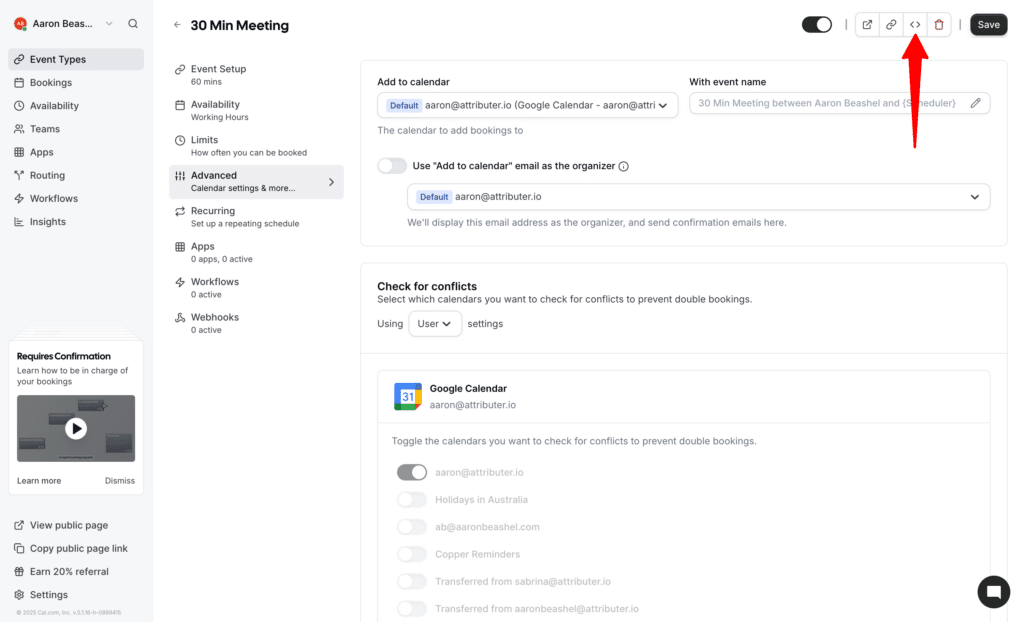
You then need to copy the embed code for your booking widget. To do this, scroll to the top of the page and select the code button.
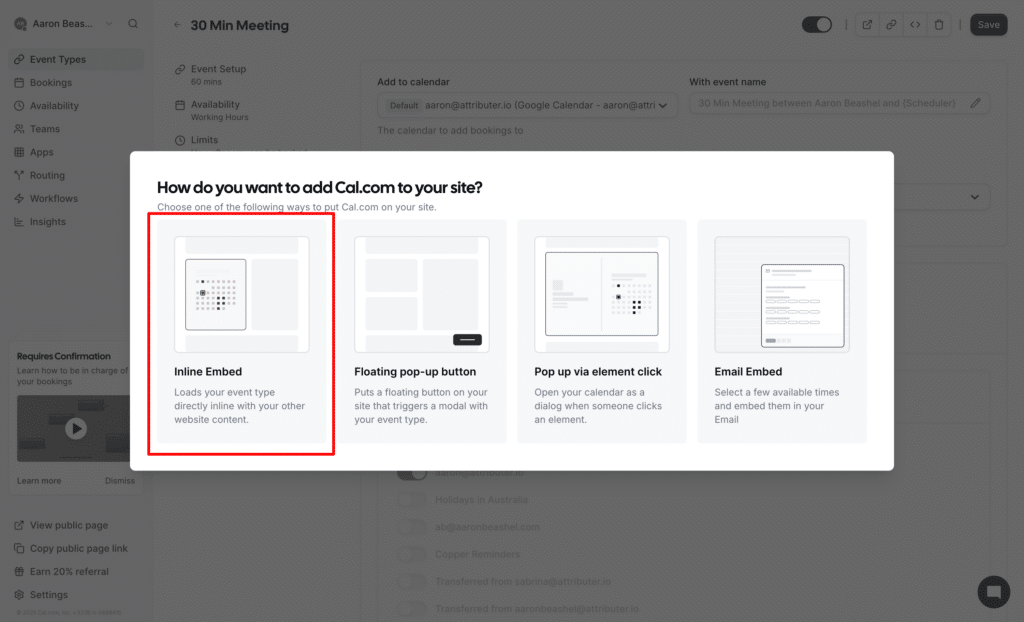
In the popup that appears, select the ‘Inline Embed’ option.
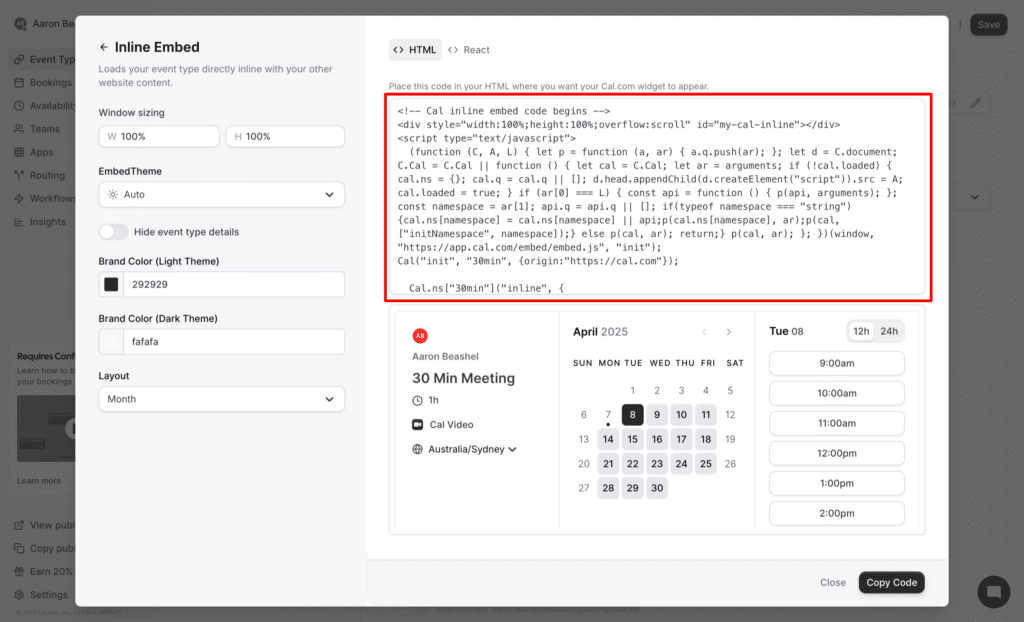
Finally, copy the code that you are given from the final screen in the popup.
Step 2: Modify the embed code
The next step is to add some additional code to the standard embed code you got from Cal.com.
The additional code you need to add (and where you need to add it) can be seen highlighted in bold below:
<!-- Cal inline embed code begins -->
<div style="width:100%;height:100%;overflow:scroll" id="my-cal-inline"></div>
<script type="text/javascript">
  (function (C, A, L) { let p = function (a, ar) { a.q.push(ar); }; let d = C.document; C.Cal = C.Cal || function () { let cal = C.Cal; let ar = arguments; if (!cal.loaded) { cal.ns = {}; cal.q = cal.q || []; d.head.appendChild(d.createElement("script")).src = A; cal.loaded = true; } if (ar[0] === L) { const api = function () { p(api, arguments); }; const namespace = ar[1]; api.q = api.q || []; if(typeof namespace === "string"){cal.ns[namespace] = cal.ns[namespace] || api;p(cal.ns[namespace], ar);p(cal, ["initNamespace", namespace]);} else p(cal, ar); return;} p(cal, ar); }; })(window, "https://app.cal.com/embed/embed.js", "init");
Cal("init", "30min", {origin:"https://cal.com"});

function waitForData() {
    if(!document.FlareTrk?.data?.drillData) {
        window.requestAnimationFrame(waitForData);
        return;
    }

    Cal.ns["30min"]("inline", {
        elementOrSelector:"#my-cal-inline",
        config: {"layout":"month_view"},
        calLink: "attributer/30min",
        config: {
            "channel": document.FlareTrk.data.drillData.channel,
            "channeldrilldown1": document.FlareTrk.data.drillData.drillDown1,
            "channeldrilldown2": document.FlareTrk.data.drillData.drillDown2,
            "channeldrilldown3": document.FlareTrk.data.drillData.drillDown3,
            "channeldrilldown4": document.FlareTrk.data.drillData.drillDown4,
            "gclid": document.FlareTrk.data.gclid,
            "fbclid": document.FlareTrk.data.fbclid,
            "id": document.FlareTrk.data.id,
            "landingpage": document.FlareTrk.data.landing_url,
            "landingpagegroup": document.FlareTrk.data.landing_page_group
        }
      });
}
waitForData();

  Cal.ns["30min"]("ui", {"hideEventTypeDetails":false,"layout":"month_view"});
  </script>
  <!-- Cal inline embed code ends -->
If your Embed code looks slightly different to the above, it may be because you have customised some of the embed options (like switching from month view to weekly view, or changing the brand colours). This is not an issue and you can proceed to add the additional code as shown in bold above.
Step 3: Paste the modified embed code into your website
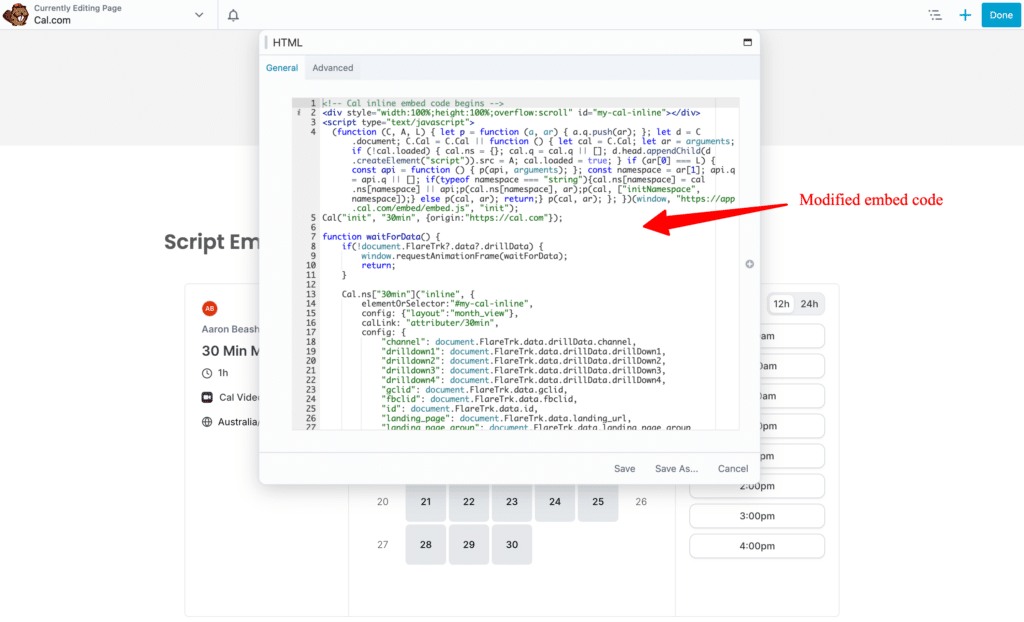
The final step is to place the modified embed code into your website where you want the Cal.com booking widget to appear.
This will look different depending on what website builder you use, but in the screenshot below you can see how we have added to our WordPress site (which uses the Beaver Builder page building plugin).
Step 4: Test it’s working
You can now go to your website and make a test booking, and the attribution data should appear alongside each booking in your cal.com account (which can be seen by going to Bookings and then selecting the appropriate booking).
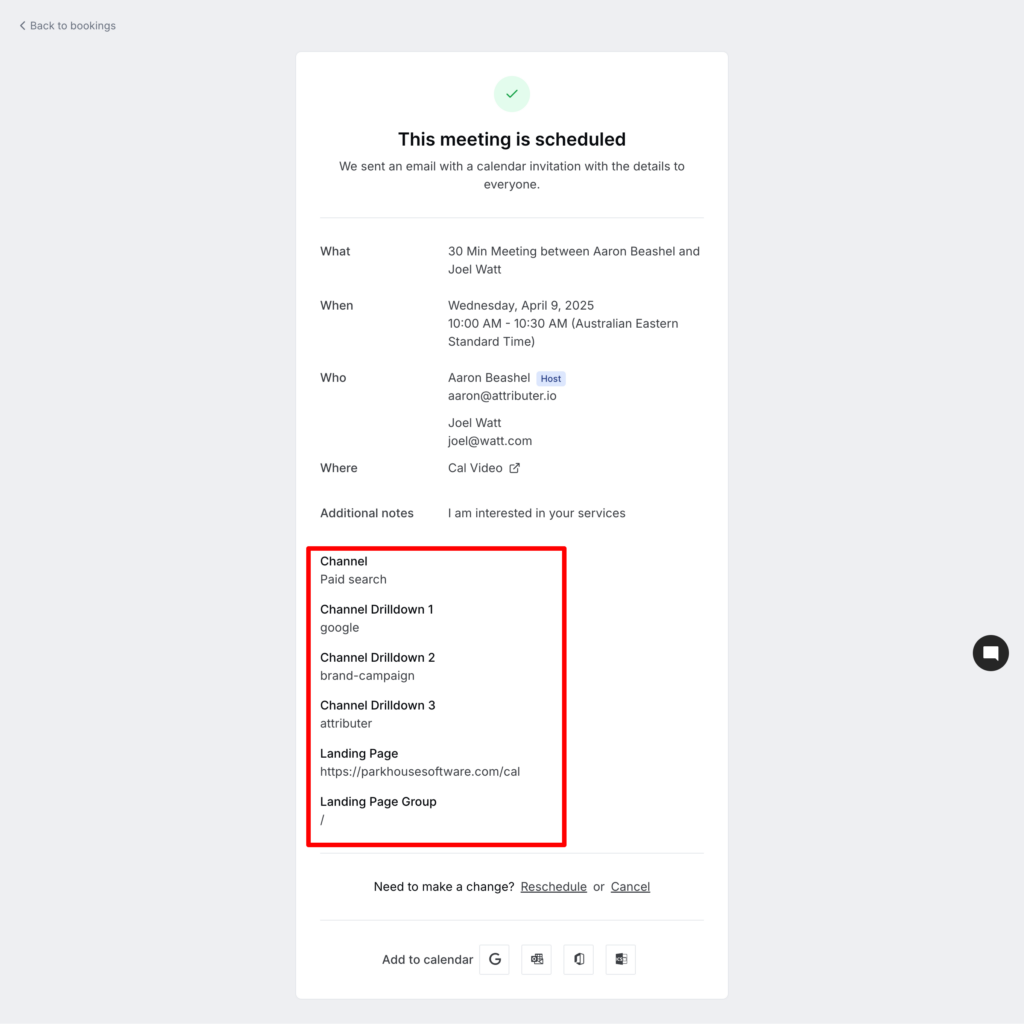
For more information on how to properly test Attributer, check out this article.
We understand that editing code can be difficult, so if you are having any issues please feel free to contact our support team. We would be happy to jump on a call and go through the setup process with you if needed.
Can't find the answer you need? Contact us!
Our team are available to answer any questions you have