Help Center
Embed Cal.com using the pop-up options

Before following these steps, make sure you have added the hidden fields to your meeting type as described in our main Cal.com article. If you’re using the ‘Pop up via element click’ or ‘Floating pop-up button’ option (where your booking calendar opens in a popup when a visitor clicks a button or link), follow the steps below to finish setting up Attributer.
With these options the booking calendar doesn’t exist until the visitor clicks, so Attributer has nothing to fill in when the page loads. To get around this, you add a small piece of extra code to your website that passes Attributer’s data to Cal.com at the moment the popup opens. You don’t need to change the embed code Cal.com gives you.
Step 1: Add the Cal.com embed code to your website
If your website already has your Cal.com popup or floating button on it, skip to Step 2.
Otherwise, open your meeting type in Cal.com and select the code button at the top of the page.
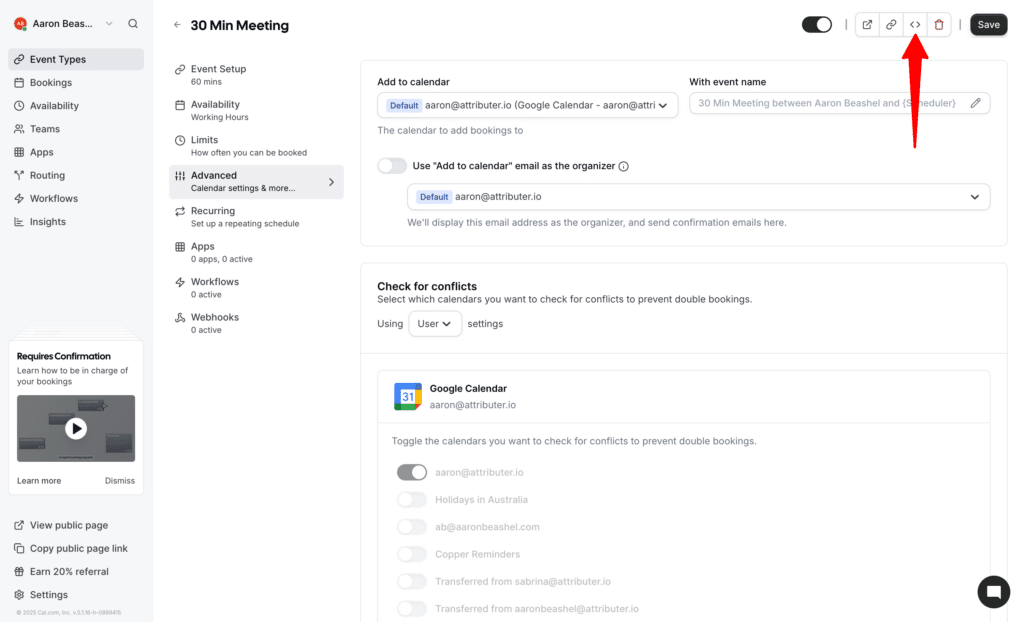
In the popup that appears, select either the ‘Pop up via element click’ option (to open the calendar from your own button or link) or the ‘Floating pop-up button’ option (to add a button that floats in the corner of every page). Then copy the code you are given and add it to your website.
Step 2: Add the Attributer code for Cal.com popups
Copy the code below and paste it into your website after both the Attributer code and the Cal.com embed code. The easiest place is usually at the bottom of the page, just before the closing </body> tag, or in the footer code section of your website builder.
<script>
/*
 * Attributer -> Cal.com popup embed bridge (v1)
 *
 * Cal.com's popup ("element click") embed has no iframe until the visitor clicks,
 * so attributer.js has nothing to fill. This snippet copies Attributer's data into
 * the data-cal-config of every [data-cal-link] element. Cal.com passes each config
 * key to the booking page as a query parameter, which fills the hidden booking
 * question with the same identifier.
 *
 * Install: paste after the attributer.js and Cal.com embed snippets.
 * Rename a parameter per button with data-attributer-<name>="<identifier>",
 * e.g. data-attributer-channel="lead_channel" (same convention as data-attributer-iframe).
 */
(function () {
  function getData() {
    var t = document.FlareTrk;
    // data is briefly undefined while attributer.js runs its licence check
    return t && t.data && t.data.drillData ? t.data : null;
  }

  function values(d) {
    var dd = d.drillData || {};
    var v = {
      channel: dd.channel,
      channeldrilldown1: dd.drillDown1,
      channeldrilldown2: dd.drillDown2,
      channeldrilldown3: dd.drillDown3,
      channeldrilldown4: dd.drillDown4,
      gclid: d.gclid,
      msclkid: d.msclkid,
      fbclid: d.fbclid,
      gbraid: d.gbraid,
      wbraid: d.wbraid,
      id: d.id,
      device: d.device,
      landingpage: d.landing_url,
      submitpage: d.submitPage,
      testingdata: d.test_data,
      landingpagegroup: d.landing_page_group,
      conversiondays: d.conversiondays,
      visits: d.visits
    };
    var fields = (window.attributersettings && window.attributersettings.customFields) || [];
    for (var i = 0; i < fields.length; i++) {
      v["custom-" + fields[i]] = (d.customFields || {})[fields[i]];
    }
    return v;
  }

  function apply(el, d) {
    var config = {};
    try {
      config = JSON.parse(el.getAttribute("data-cal-config") || "{}") || {};
    } catch (e) {}
    var v = values(d);
    for (var name in v) {
      var key = el.getAttribute("data-attributer-" + name) || name;
      config[key] = v[name] == null ? "" : String(v[name]);
    }
    el.setAttribute("data-cal-config", JSON.stringify(config));
  }

  function applyAll() {
    var d = getData();
    if (!d) return false;
    var els = document.querySelectorAll("[data-cal-link]");
    for (var i = 0; i < els.length; i++) apply(els[i], d);
    return true;
  }

  // Capture phase runs before Cal.com's own document click listener reads the
  // config, which also covers buttons added to the page after load.
  document.addEventListener("click", function (e) {
    var el = e.target && e.target.closest && e.target.closest("[data-cal-link]");
    var d = getData();
    if (el && d) apply(el, d);
  }, true);

  var tries = 0;
  (function wait() {
    if (applyAll() || ++tries > 100) return;
    setTimeout(wait, 200);
  })();
})();
</script>
You don’t need to change anything in this code. It works with both pop-up options, and if you have several booking buttons on the page, it works with all of them.
Step 3: Test it’s working
Go to your website, click the button that opens your Cal.com popup (or the floating button) and make a test booking. The attribution data should then appear alongside the booking in your Cal.com account (which you can see by going to Bookings and selecting the booking).
For more information on how to properly test Attributer, check out this article.
We understand that editing code can be difficult, so if you are having any issues please feel free to contact our support team. We would be happy to jump on a call and go through the setup process with you if needed.
Can't find the answer you need? Contact us!
Our team are available to answer any questions you have